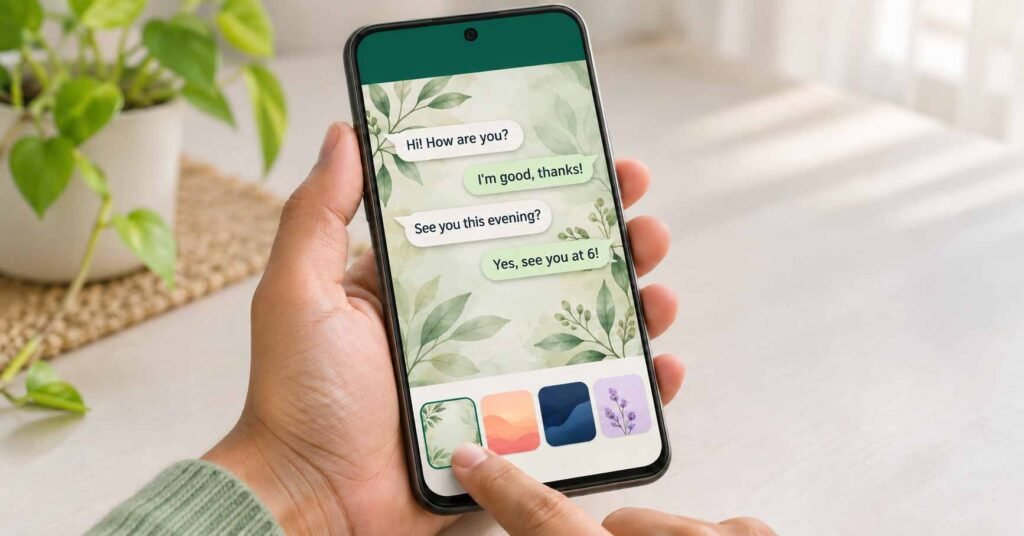
Quick Answer
A WhatsApp chat wallpapers app helps you find background images. Wallpapers for WhatsApp Chat by Fivex Solution describes a download-to-gallery process: save an image, then select it inside WhatsApp. You can also use WhatsApp’s own wallpapers or your photos without this extra app. Consider the app for its image collection, while checking advertisements, permissions, and whether the saved picture actually downloads.
A good chat background should make a conversation pleasant to open and easy to read. That can mean a soft gradient, a floral pattern, a dark illustration, or a personal photo. The most useful design is the one that still works when messages, dates, and the keyboard occupy the screen.
Wallpapers for WhatsApp Chat offers a collection of images grouped by style. Its practical value is helping you find something suitable without searching across several websites. Choosing the picture and applying it are separate actions, though, and that distinction can explain why a downloaded wallpaper has not appeared in a conversation.
There is another decision to make before installing. WhatsApp already provides chat themes and supports backgrounds from your photo collection. If you have a suitable image, you can go straight to WhatsApp. A separate catalogue becomes more useful when you want to browse different looks or regularly change your background.
This guide follows the complete process: choosing an image, checking the download, applying it to the intended chats, and deciding whether the extra app is worth keeping. It also explains the difference between the older menu path in the app description and WhatsApp’s current theme controls. The aim is a readable conversation background, with clear expectations about what each app changes.
Quick Overview
| Question | Practical answer |
|---|---|
| What does the app provide? | A browsable collection of wallpaper images. |
| Where is the image saved? | The developer describes saving it to the phone’s gallery. |
| Where do you apply it? | Inside WhatsApp’s wallpaper or chat-theme controls. |
| Is it an official WhatsApp product? | It is published separately by Fivex Solution. |
| Is another app essential? | No. WhatsApp supports its own backgrounds and personal photos. |
| What should you check first? | Image availability, ads, permissions, and the intended chat scope. |
What Wallpapers for WhatsApp Chat Actually Offers
The description lists styles such as Love, Flower, Abstract, Galaxy, Gradient, Illustration, Neon, pets, and cars. Categories are useful when you know the mood you want but have not chosen a specific image.
For example, a gradient may suit a busy work conversation because it creates less visual competition. A floral or illustrated background may feel more personal. An image with a large quote, however, can compete with the messages you are trying to read.
These are selection suggestions, not claims that every image in a category has been checked for quality. The collection’s usefulness depends on what is currently available and whether the image saves correctly.
If you are also choosing backgrounds for your phone’s home or lock screen, our guide to aesthetic wallpaper apps explains the wider choice between installing a catalogue and using individual image files.
Step 1: Save One Wallpaper and Check the File
- Install Wallpapers for WhatsApp Chat from Google Play, checking that Fivex Solution is the publisher.
- Open the app and choose Chat Wallpapers, as described by the developer.
- Browse a category and select one background.
- Use its download option and respond to any relevant Android prompt.
- Open your gallery or file app and confirm that the downloaded image opens.
Try one image before downloading a whole collection. If there is no usable file, the problem is at the download stage. Changing WhatsApp settings will not create the missing picture.
This sequence follows the published workflow; we have not tested the download function on a physical device.
Step 2: Choose Which Chats You Want to Change
WhatsApp supports a default appearance and individual chat themes. Decide the scope before applying your picture.
For the Default Chat Background
- Open WhatsApp’s three-dot menu and go to Settings.
- Look for Appearance → Default chat theme → Wallpaper. Some versions place Default chat theme under Chats.
- Use the photo or gallery choice available on your device to select the saved image.
- Review the preview, confirm the selection, and use the wallpaper confirmation shown.
For One Conversation
- Open the conversation.
- Choose the three-dot menu, then Chat theme → Wallpaper.
- Select your saved picture, review it, and confirm.
Refer to WhatsApp’s official theme instructions if the controls differ. A conversation with its own appearance setting is worth checking separately when a default change does not produce the result you expected.
Why the App’s Instructions May Look Different
The store description still shows a route through Settings → Chats → Wallpaper → Change → My Photos. Current WhatsApp guidance describes chat-theme controls, including an Appearance section.
The underlying task remains choosing a saved image inside WhatsApp. Follow the controls offered by your installed version rather than searching indefinitely for an older button name.
WhatsApp’s official explanation of chat themes also confirms that users can select backgrounds from their photo collection and customize conversations individually.
Check Readability Before Keeping the Design
A wallpaper preview shows the picture clearly. A real conversation covers much of it. Check the result in the chat itself:
- Read several messages. Small patterns or lettering behind the bubbles can make the screen feel crowded.
- Open the keyboard. Make sure the remaining visible area still looks balanced.
- Inspect the crop. A face, flower, or central design may be partly hidden once the image fills the chat area.
- Check your usual lighting. Judge the result at a comfortable screen brightness, including your normal evening use.
- Compare with a plain background. Keep the decorative option only if it remains pleasant during an actual conversation.
These checks are particularly useful for quote wallpapers. A meaningful sentence in the image can become distracting when it sits behind a different discussion.
If the Downloaded Wallpaper Does Not Appear
The Image Is Missing From Your Gallery
Confirm whether a download finished and whether a local file exists. Check your connection, available storage, and any message shown by the wallpaper app. Try one other image to see whether the issue affects a particular download.
Avoid treating an advertisement’s close button or a completed animation as proof that the image saved. The useful check is opening the actual file.
The File Exists, but the Photo Selector Does Not Show It
Look for a device-folder or Browse option in the selector. Google’s Android photo-picker guidance explains that supported pickers can select individual files and may offer browsing through other providers. Options depend on the app and device.
If the picture is only in cloud storage, confirm that it is available through the picker or save a local copy first. Google separately explains Google Photos access through the photo picker.
The Picture Saved but the Chat Still Looks the Same
Return to WhatsApp and complete the selection and confirmation there. Downloading inside the catalogue is not the same action as applying a background. Also check that you changed the intended conversation rather than only the default appearance.
Permissions and Privacy Before Installing
The Play Store’s developer-provided Data safety panel declares no data collection or third-party sharing. It also reports encryption in transit and says data cannot be deleted. These disclosures are not an independent audit of how the app behaves.
The listing links to a Fivex Solution privacy policy. Its policy text could not be independently reviewed while preparing this guide, so the privacy assessment here is limited to the Play disclosures and the described workflow.
For photo selection, use limited access or a system picker when offered. Review requests in context: browsing wallpaper images does not, by itself, explain a request to read contacts, record audio, or access chat notifications. This is a permission check, not a claim that this app requests those capabilities.
You can review access through Settings → Apps → Wallpapers for WhatsApp Chat → Permissions. See Google’s instructions for changing app permissions.
The described process also provides no reason to share a WhatsApp verification code or link your messaging account just to save a wallpaper image.
Limitations Worth Knowing
- Ads are listed. We have not measured their frequency or verified access conditions for every image.
- It adds a separate discovery step. You still finish the wallpaper choice inside WhatsApp.
- An image file changes the background. Bubble colors and broader theme settings belong to WhatsApp’s own controls.
- Image quality varies. A busy or low-resolution picture may be less useful after cropping.
- Old menu instructions can cause confusion. Use current WhatsApp guidance for the application stage.
The retrieved store listing shows an update date of 30 September 2024. This article is a usage guide, not an announcement of a newly released app update.
Who Should Use It?
It may suit people who enjoy browsing grouped wallpaper styles and have not found a background they like in their own photos or WhatsApp’s collection.
Its value is the convenience of finding an image. Start with one successful download and application before deciding whether you want to keep the catalogue installed.
Who Should Avoid It?
Skip the extra app if you already have a suitable picture, prefer a plain color, or want to avoid another advertising-supported catalogue. It is also a poor match if you expect it to redesign another person’s chat screen or automatically control every WhatsApp theme setting.
Which Option Fits Your Need?
| Your preference | Useful starting point |
|---|---|
| A quick change with fewer steps | Use WhatsApp’s included wallpaper or theme choices. |
| A family photo or a picture you already own | Select it directly through WhatsApp’s photo option. |
| Several visual styles to browse | Consider this catalogue after checking ads, downloads, and permissions. |
| Different looks for particular conversations | Use each conversation’s Chat theme controls. |
Bonus App Card
| App | Wallpapers for WhatsApp Chat |
|---|---|
| Developer | Fivex Solution |
| Platform / category | Android / Entertainment |
| Google Play | Open the official app listing |
| Pricing model | Available to install with advertisements; check any current offer before accepting. |
| Downloads | 1M+ in the store view checked on 3 November 2026. |
| Rating | Check the current score for your device and region. |
| Last update shown | 30 September 2024. |
| Release date / version / Android requirement / size | Not independently confirmed from the accessible official listing; check App info in Google Play. |
| Support email | fivexsolution@gmail.com |
| Privacy policy | Read the developer-linked policy. |
| Developer’s stated purpose | Organized background images that users can download and select for WhatsApp chats. |
How to Uninstall
Open Google Play → profile icon → Manage apps & devices → Manage, select the wallpaper app, and choose Uninstall. Google provides official app-removal instructions.
Keep a copy of any downloaded image you want to reuse. To return a conversation to another background, change its wallpaper inside WhatsApp; removing the wallpaper catalogue and choosing a chat background are separate actions.
Frequently Asked Questions
Do I need a wallpaper app to change my WhatsApp background?
No. WhatsApp provides its own choices and lets you use an image from your photo collection. A separate app is optional when you want another collection to browse.
Can the other person see the wallpaper I choose?
WhatsApp says chat themes are visible only to the person who applies them. Your background choice does not automatically replace the other person’s chat appearance.
Does downloading a wallpaper also change message bubble colors?
A downloaded picture supplies the background. Use WhatsApp’s Chat theme or chat-color controls for supported bubble-color changes.
Why did the app finish downloading without changing WhatsApp?
The developer describes saving the image to your gallery. You then need to open WhatsApp, select that file as a wallpaper, and confirm the change.
Will this app make my chat wallpaper animated?
The reviewed description explains downloading background images. An animated-wallpaper feature has not been verified for this app, so do not install it expecting that capability.
Why is one conversation different after I change the default theme?
Check that conversation’s own Chat theme settings. Open it, review the selected wallpaper, and apply the picture there if you want that specific chat to use it.
Final Recommendation
A WhatsApp chat wallpapers app is worth considering when finding a design is the part you need help with. Fivex Solution’s app offers an advertised category-based collection, but the important test is whether you can save an image and enjoy reading a conversation with it applied.
Use WhatsApp’s included options or your own photo first if they meet your needs. Try the extra catalogue when its selection offers enough value to justify the ads and installation. Keep permissions limited to the features you use, and follow WhatsApp’s current controls when applying the result.
Browse more messaging explainers in IndShorts’ WhatsApp guides.
Editorial disclosure: IndShorts publishes independent app guides and practical mobile information. This article draws on the developer’s published description, official WhatsApp and Android guidance, and editorial analysis. We did not install or test the featured app. Information was checked on 3 November 2026; features, availability, permissions, and store details can change.
Related Apps & Guides
How to Use Vault to Hide Videos and Audio?
October 28, 2026 • Read MoreHow Do Calling Apps Work? Play Store App Costs and Key Checks!
October 26, 2026 • Read MoreCalls Voice Changer: How Works and What to Check Before Paying
October 22, 2026 • Read MoreDevotional Wallpapers and Ringtones for Android
October 20, 2026 • Read MoreWhat Is a Mobile Vault App? How Photo & Video Vaults Really Work
October 15, 2026 • Read MoreNavratri Vibe: What to Check Before Installing
October 13, 2026 • Read More✍️ About the Author – M Raj
Every website article I write is for the benefit of users (viewers). I focus on fully meeting the needs of article visitors and ensuring they are satisfied. All articles are created following Google’s article policy (Publisher Center guidelines). To get in touch, email M Raj at mraj@indshorts.com.
🧾 Editorial Standards
For corrections or clarifications, contact M Raj: keyboardtamil17@gmail.com