Quick answer
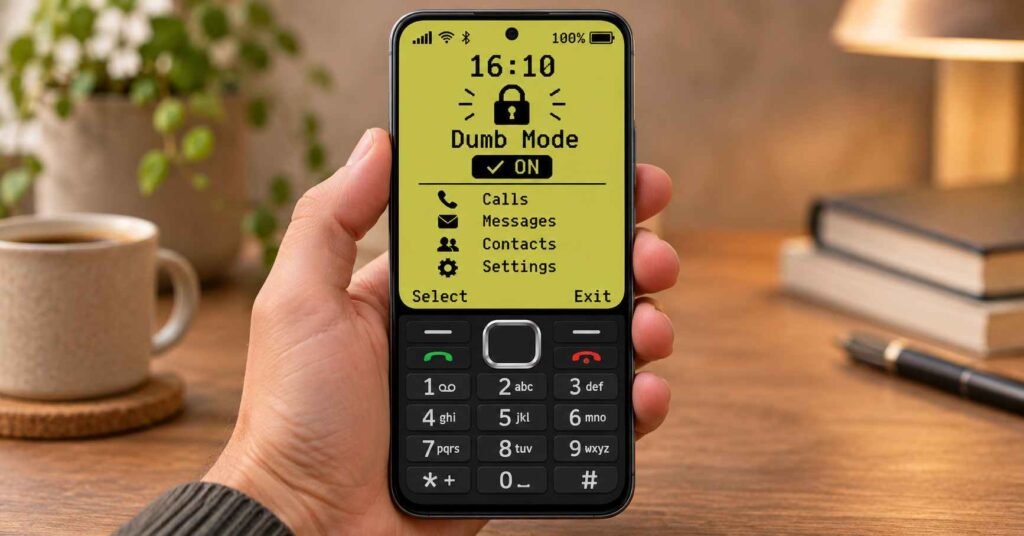
Nokia Launcher for Android can do both. It gives your home screen a classic keypad look. Its separate Dumb Mode lets you choose which apps stay accessible and sends you back to the home screen if you open a blocked one. Blocking requires Android Accessibility access. If you only want to pause a few apps and silence their notifications, try Android’s built-in Focus mode first.
Think about the last time you unlocked your phone to check a train time and ended up watching videos. Where did the detour start? If you tapped a familiar icon without thinking, changing what you see when you press Home might be enough. If you deliberately searched for the video app and opened it, a different home screen alone would not have interrupted you. That is the distinction that matters when deciding whether to install Nokia Launcher.
There is a third possibility: you never went to the home screen at all. A notification caught your attention while the phone was on your desk. In that case, the first setting worth changing is what can notify you. A retro keypad might be enjoyable, but it addresses a different part of the habit.
Before choosing a launcher, pick one task you want to make easier and one distraction you want to make harder. “I want to open my bus pass quickly and stop opening short videos on the way to work” is a better test than “I want less screen time.” You can tell after a single commute whether the new setup helped with either part.
Quick overview: what changes on your phone?
| Feature | What it means in practice |
|---|---|
| Retro home screen | An LCD-style display, number keys, directional controls, and keypad sounds recreate part of the feature-phone experience. Your Android apps remain installed. |
| Dumb Mode | You choose the apps you want to keep available. With its Accessibility service enabled, the launcher redirects you Home when you open a blocked app. |
| Friend Authenticator | A paired friend can provide an unlock code, adding another person to the decision to leave Dumb Mode. |
| Multi-tap input | You can try traditional keypad-style typing. Navigation outside the launcher depends on the device and the app. |
These are features described by the developer. The independent app is not affiliated with or endorsed by Nokia.
What “blocked” means in Dumb Mode
Suppose you keep calls, messages, and maps available, but leave a video app off your list. According to the developer, when that video app becomes active, Dumb Mode identifies it and returns you to the home screen. The video app stays installed. That interruption gives you a moment to put the phone down.
Two details are easy to overlook. First, the listing describes what happens when an app opens. It does not promise that the app’s notification previews disappear. If message previews are the distraction, test that separately. Second, an allowed browser may still give you access to a website you meant to avoid. Decide whether you need the browser for a real task, such as opening a ticket link, before adding or removing it.
Why does Nokia Launcher ask for Accessibility access?
The developer describes two distinct uses. For blocking, Dumb Mode checks the identifier of the app in front and says it does not read screen text for that check. For keypad navigation across apps, the service uses information about the active screen’s controls to move focus, select an item, scroll, or go back. The first explanation does not describe everything the second feature does.
If you mainly want the old keypad appearance, start by trying the home screen before deciding whether you want cross-app controls or blocking. If you do enable the service, read the Android prompt and try the controls in an app you actually use. A directional key that works well in a simple menu may be less useful in your maps or messaging app.
Google Play’s Data safety panel shows that the developer declares no data collection or third-party sharing. That declaration answers a different question from what an enabled service can access on the device. You can review the service under Android’s Accessibility settings and disable it there; features that rely on it will stop working.
Before pairing a friend, test one ordinary errand
Try Dumb Mode on a short walk or shopping trip before relying on it for a full workday. Test the whole task, not just the first app. A transport app might open a ticket in a browser. A work login might need an authenticator. A delivery message might contain a map link. It is easy to remember the app you start in and forget the one you need next.
- Write down your essentials. Include the tools you would need away from home: calls, messages, maps, tickets, or authentication.
- Follow the links you normally use. Open a saved ticket or a map link from a message. If the second app sends you Home, revise your list.
- Check an ordinary distraction. Try opening one app you intended to block. Then check separately whether its notifications are still visible.
- Understand the unlock process. Before pairing with a friend, find out what you can do if that person is busy or offline. The public listing describes friend-provided codes but does not document an emergency recovery procedure.
A useful setup keeps the bus pass one tap away and makes the video feed harder to reach. If it does the reverse, change the list before making the restrictions harder to undo.
Nokia Launcher vs Android Focus mode
The two tools start from opposite directions. With Dumb Mode, you think about what you want to keep. With Android Focus mode, you choose what you want to pause. Google says paused apps cannot be used and their notifications are withheld while Focus mode is active. On supported phones, you can set a schedule or take a timed break.
| What you want | Try this first |
|---|---|
| A classic keypad whenever you press Home | Nokia Launcher’s retro interface |
| Only a short list of essentials during a study session | Nokia Launcher’s Dumb Mode |
| Two distracting apps silenced every weekday morning | Settings → Digital Wellbeing → Focus mode |
| Help sticking to a limit you usually turn off yourself | Consider Friend Authenticator after testing your essential apps and unlock options |
| To know whether the change is helping | On supported phones, compare how often you open the distracting app in Digital Wellbeing. Total screen time alone can include useful activities such as navigation. |
Bonus app card
| Detail | Verified information |
|---|---|
| Official listing | Nokia Launcher | Dumbphone on Google Play |
| Developer | Subconsciously Proactive |
| Platform and category | Android · Personalization |
| Price information | In-app purchases listed. Check the offer on your device before paying for a particular feature. |
| Downloads and rating | 1K+ downloads on the listing checked; no numerical star rating was displayed. |
| Update | November 8, 2026. The listing did not identify which features changed in that update. |
| Privacy and support | Privacy policy linked under App support. Support email: mr.ahhk142857@gmail.com |
| Other details | First release date, current version, minimum Android version, and download size were not verified. |
Listing checked November 10, 2026. Store details can vary by device and region.
Frequently asked questions
Will my phone still run WhatsApp, maps, or payment apps?
Changing the home screen does not remove your installed apps. If you use Dumb Mode, keep the ones you need on your allowed list. Test any sign-in or payment handoff before depending on it away from home.
Does the keypad give my phone physical buttons?
No. The keys are on the touchscreen. Multi-tap input can recreate part of the typing experience, but it cannot give you the tactile feedback of a raised number key.
Will it block social media notifications?
The developer documents a redirect when a blocked app opens. Notification suppression is not confirmed. If quiet notifications are your main goal, Android explicitly offers that behavior for apps paused in Focus mode.
Is Dumb Mode suitable as a parental lock?
The listing presents it as a focus and accountability feature. It does not establish tamper-resistant parental controls. Treat it as a tool for following limits you have chosen for yourself.
How do I switch back and uninstall Nokia Launcher?
In Android Settings, search for Home app or Default apps and select your previous launcher. If you enabled Nokia Launcher’s Accessibility service, switch it off in Accessibility settings. Then open the launcher’s Google Play page and choose Uninstall. Menu names vary by phone.
Is Nokia Launcher worth trying?
Choose Nokia Launcher if you want the keypad itself or you prefer starting a focus session with a short list of essential apps. Choose Android Focus mode if you already like your home screen and mainly want specific apps and their notifications paused on a schedule. If you try the launcher, make your first test a real errand: can you finish what you picked up the phone to do, then put it away?
IndShorts.com is independent of Nokia, the app developer, and Google Play. This guide is based on the official listing and Android documentation; it is not a hands-on performance or privacy audit.
Related Apps & Guides
What Is Calculator Lock? PrimeHide Features and Risks
November 5, 2026 • Read MoreWhatsApp Inbox Wallpapers App: How to Use It on Android?
November 3, 2026 • Read MoreHow to Use Vault to Hide Videos and Audio?
October 28, 2026 • Read MoreHow Do Calling Apps Work? Play Store App Costs and Key Checks!
October 26, 2026 • Read MoreCalls Voice Changer: How Works and What to Check Before Paying
October 22, 2026 • Read MoreDevotional Wallpapers and Ringtones for Android
October 20, 2026 • Read More✍️ About the Author – M Raj
Every website article I write is for the benefit of users (viewers). I focus on fully meeting the needs of article visitors and ensuring they are satisfied. All articles are created following Google’s article policy (Publisher Center guidelines). To get in touch, email M Raj at mraj@indshorts.com.
🧾 Editorial Standards
For corrections or clarifications, contact M Raj: keyboardtamil17@gmail.com