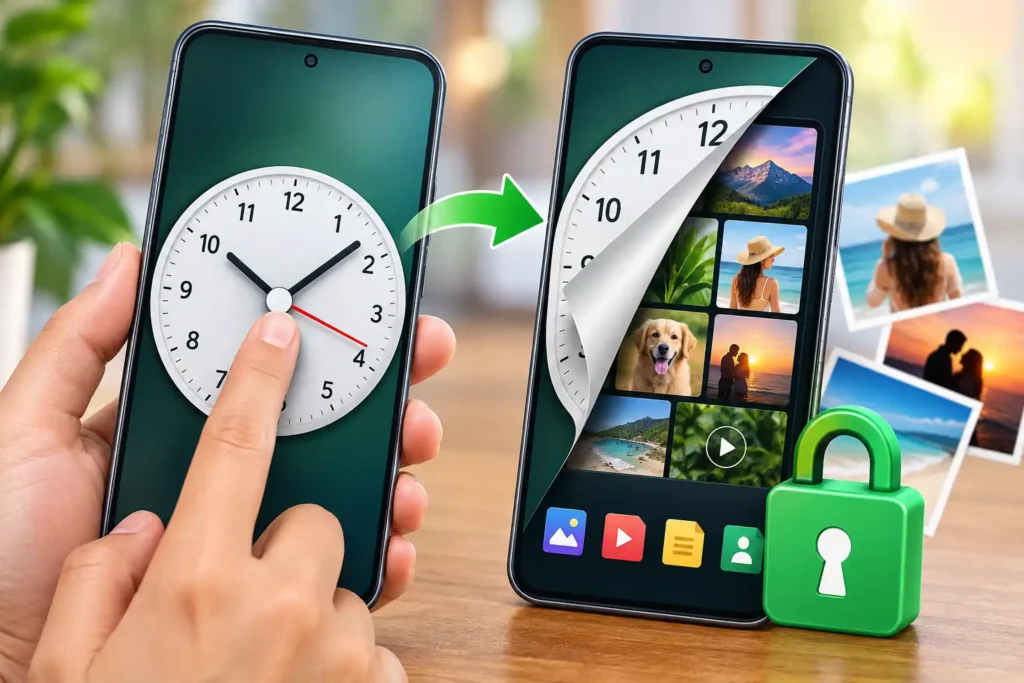
A vault app has a more difficult job than an ordinary Android utility. It does not simply need to work—it may be trusted with photos, videos, documents, or other files that users specifically do not want exposed or accidentally lost.
Clock Vault Hide Photos, Video takes an unusual approach to this problem. Instead of presenting itself as an obvious gallery locker, it uses a working clock-style interface as the entrance to a hidden vault.
That makes the app interesting, but the disguise should not be the main reason to install it. Before moving important files into any vault, users should understand how access works, what happens to their files, what data the app says it collects, and how they would recover their media if something goes wrong.
The app is currently listed on Google Play under developer Paint, contains ads, and Google Play shows an update date of June 4, 2026.
Table of Contents
Quick Summary
15–30 second answer: Clock Vault Hide Photos, Video is an Android privacy utility that hides photos, videos and other files behind an interface designed to look like a normal clock. The developer describes PIN protection, media management and playback inside the vault. The current Google Play Data safety section says no data is shared with third parties, while the app may collect app activity, app information and performance data, and device or other IDs.
The feature that deserves the most attention, however, is not the clock disguise. It is file recovery.
Before trusting any vault with irreplaceable photos or videos, test hiding a disposable sample file, restoring it to normal storage, and confirming your backup strategy. Do that before moving an entire private library.
Why This Vault Is Different From Simply Locking Your Gallery
There are two separate privacy ideas here.
The first is access control: another person needs the correct credentials to enter the private area.
The second is concealment: someone casually looking through the phone may not immediately recognize the app as a photo vault.
Clock Vault combines both concepts.
According to its Play Store description, the app appears as a clock and uses the clock interface to access the protected area. The developer says users move the clock hands and use the center button while setting up access. Behind that interface, users can manage hidden photos, videos and files.
That distinction matters.
A disguised icon or interface can reduce casual discovery, but it should not be confused with proof of stronger underlying data security. The quality of a privacy vault ultimately depends on how files are protected, stored, backed up and recovered—not simply on what its opening screen looks like.
What the App Currently Offers
The developer’s current listing describes the ability to select multiple photos, move them into the hidden vault, preview them, unhide them, share them or delete them. Videos and other files are also supported, and videos can be played from inside the vault.

The current Google Play “What’s new” section highlights three main functions: secure PIN protection, hiding/managing photos and videos, and playing hidden media inside the vault.
This makes it primarily useful for people who occasionally hand their unlocked phone to somebody else—for example, to show one photo—without wanting every personal album immediately visible.
It can also be useful for separating personal media from the normal gallery.
But there is an important practical distinction: privacy from casual browsing is not the same thing as a backup system.
The Most Important Test Most Users May Skip
Before importing 500 photos, import one unimportant photo.
Then perform the complete round trip:
normal gallery → vault → open inside vault → restore/unhide → normal gallery
After restoring it, check that the file actually appears where expected and opens normally.
This small test answers something that screenshots cannot: whether you personally understand the app’s file workflow before entrusting it with valuable content.
Repeat the experiment with a short disposable video if videos are important to you.
Only after understanding that process should you consider transferring important media.
This is especially relevant because moving media into a vault changes how users interact with files they may have kept for years. A mistake involving an irreplaceable family photo is considerably more serious than losing the settings of an ordinary utility app.
The Backup Question Deserves More Attention Than the Clock
The Google Play description says users can save vault data securely and restore it on a new device. However, the visible store description does not provide enough technical detail by itself to treat that statement as a complete disaster-recovery plan.
Before relying on that feature, a user should establish answers to several practical questions:
- Where is the backup stored?
- Does restoration require the original PIN or another credential?
- What happens after a factory reset?
- What happens if the old phone is damaged?
- Can files be restored without the app?
- What happens if the app is removed before files are restored?
If those answers are unclear during actual use, keep a separate secure copy of genuinely irreplaceable files.
That is arguably more important than whether somebody can recognize the vault icon.
Privacy: What Google Play Currently Says
The current Google Play Data safety declaration deserves attention because this is specifically an app designed to handle private content.
According to the developer-provided information displayed by Google Play:
| Data-safety item | Current Play Store declaration |
|---|---|
| Third-party data sharing | No data shared with third parties |
| Data that may be collected | App activity |
| Additional data that may be collected | App info and performance |
| Identifiers | Device or other IDs |
| Data in transit | Encrypted in transit |
These are developer-provided Data safety declarations, not an independent security audit of the vault. Google Play itself explains that privacy and security practices can vary according to use, region and age and that the developer supplies this information.
That qualification is important.
“No data shared with third parties” should therefore not be rewritten as “the app collects nothing,” because the same listing says several categories of data may be collected.
Likewise, “data is encrypted in transit” concerns data while being transmitted. It does not, by itself, tell a reader exactly how every hidden photo or video is protected while stored locally on the device.
Those are different security questions.
Permissions Matter More for a Vault Than for a Clock
A normal clock has little reason to interact extensively with personal media.
A photo/video vault obviously does.
Therefore, users should not be surprised if Android requests media or file access needed for importing and managing content. What matters is whether each permission makes sense for the feature being used.
Before approving access, check the permission screen shown by your current Android version and the current app build rather than relying on an old permissions list from an article.
Android’s media-access model has changed over time, and permissions can also change between app releases.
If a requested permission appears unrelated to a feature you intend to use, do not automatically approve it merely to finish setup. Check why it is needed first.
Disguise Is Useful, but It Has a Limit
The clock interface addresses a particular privacy problem: someone casually browsing the phone may overlook an application that appears to be an ordinary clock.
That can be useful on shared or frequently handled phones.
But users should think about privacy in layers:
Layer 1: The private media is removed from casual gallery browsing.
Layer 2: The vault requires authentication.
Layer 3: Someone may not immediately realize the vault exists.
Layer 4: Important files remain recoverable if the phone or app fails.
The clock disguise mainly contributes to Layer 3.
For valuable personal data, Layer 4 can be just as important.
Who Might Find It Useful?
Clock Vault makes the most sense for Android users who want an additional private space for personal media and prefer that space not to look like an obvious photo locker.
For example, a user might want to keep personal documents, surprise-gift photographs, private family media or other sensitive but legitimate files away from the standard gallery when temporarily lending an unlocked phone to someone.
It is less compelling for somebody who merely needs ordinary photo organization or whose phone already provides a suitable built-in secure/private storage feature.
Built-in solutions may also have an advantage: they can be more closely integrated with the phone’s operating system and account-recovery ecosystem.
What I Would Check Before Moving Important Files
For this particular category of app, the sensible installation test is more important than simply checking whether the interface looks attractive.
Start with non-critical media. Confirm that the PIN mechanism works consistently. Hide and restore a test image. Restart the phone and verify access again. Understand any backup/restore option offered inside the app. Check current permissions in Android Settings. Finally, make sure irreplaceable originals exist somewhere secure before removing them from ordinary storage.
This is a better evaluation than immediately importing an entire gallery.
Ads Are Another Detail to Consider
The current Play Store listing explicitly labels Clock Vault Hide Photos, Video as “Contains ads.”
That does not automatically make an app unsafe, but advertising is worth considering differently in a privacy utility than in a casual game.
Users opening a vault may be interacting with sensitive content. Therefore, pay attention to where advertisements appear and whether they interfere with navigation, importing, viewing or restoring private media.
If the ad experience makes you uncomfortable in the context of private files, that alone may be a reason to choose a different storage approach.
Is Clock Vault Hide Photos, Video Free?
Google Play currently presents an Install option and states that the app contains ads. The listing available during this check does not provide enough information for this article to promise that every feature will always remain free or that pricing cannot change.
Check the current Google Play screen on your device before installing.
Android or iPhone?
The specific Clock Vault Hide Photos, Video package discussed here is an Android app available through Google Play.
Apps with very similar “Clock Vault” names also exist, including unrelated products from other developers. Do not assume that a similarly named iPhone app or another Android vault is the same product.
Verify both the exact app name and developer before installing.
Clock Vault Hide Photos, Video on Google Play
How to Uninstall It Safely
Do not treat a vault app like an ordinary app when uninstalling it.
First open the vault and restore/unhide any files you want to keep. Confirm those files are accessible outside the vault. Back up irreplaceable media separately. Only after confirming that your important content is safe should you remove the app.
This precaution is deliberately conservative. The current Play listing says the app supports saving and restoring vault data, but the publicly visible description does not provide enough detail to guarantee what happens to every user’s hidden files under every uninstall, reset or device-transfer scenario.
Never experiment with uninstall/reinstall recovery using your only copy of an important file.
Is It Worth Trying?
Clock Vault Hide Photos, Video has an understandable use case: it combines a hidden media space with a clock-style disguise, PIN access and management of private photos, videos and files.
The feature set deserves attention if concealment from casual phone browsing is specifically what you need.
The decision becomes more complicated if your primary requirement is long-term protection of irreplaceable data. In that situation, the first questions should be about storage, backup, restoration and permissions rather than the disguised interface.
The safest way to evaluate it is therefore simple: install only from the official listing, inspect the current permissions and privacy information, and test the entire hide-and-restore workflow using disposable files before trusting it with anything valuable.
Frequently Asked Questions
Is Clock Vault Hide Photos, Video available now?
Yes. The Android app currently has an active Google Play listing under developer Paint. Google Play shows it was updated on June 4, 2026.
Does it really look like a clock?
That is the central design described by the developer. The clock interface acts as the disguised entrance to the hidden vault.
Can it hide videos as well as photos?
Yes. The current listing describes hiding photos, videos and other files, and says videos can be played from within the vault.
Is Clock Vault completely private?
Do not interpret the word “vault” as proof of complete privacy. Google Play currently says the app may collect app activity, app information and performance, and device or other IDs, while the developer declares no third-party data sharing.
Does the app contain ads?
Yes. Google Play currently marks it as containing ads.
Should I hide all my photos immediately after installing?
A safer approach is to test with one or two unimportant files first. Make sure you can hide, view and restore them successfully before moving important media.
Can I uninstall the app after hiding my files?
Restore important files and independently verify your backup before uninstalling. Do not assume hidden media will remain recoverable after deleting a vault application unless you have specifically verified the recovery process.
Is there an iPhone version?
The exact app/package covered here is the Android Google Play version. Similar names in Apple’s App Store can refer to different apps and developers, so they should not be treated as the same product.
Final Takeaway
Clock Vault Hide Photos, Video is more interesting as a privacy workflow than simply as a disguised clock.
The clock can conceal the existence of a vault from casual observation. The PIN can restrict entry. But for users storing valuable personal media, the bigger questions are whether they understand where their files go, how permissions are being used, and how those files can be recovered later.
Test first. Back up important originals. Verify restoration. Then decide whether the convenience of a disguised vault fits your privacy needs.
Editorial Disclosure
IndShorts.com publishes independent app news, update explainers, mobile technology guides, and informational content.
IndShorts.com is not affiliated with Google Play, the App Store, Google, Apple, Paint, or the developer of Clock Vault Hide Photos, Video.
App names, logos, trademarks, and brand names belong to their respective owners. This article is based on publicly available information, the current official Google Play listing, and independent editorial analysis. App features, permissions, pricing, availability, and privacy practices may change over time. Readers should verify important details through the official app listing before installing or making decisions.
Related Apps & Guides
WhatsApp Inbox Wallpapers App: How to Use It on Android?
November 3, 2026 • Read MoreHow to Use Vault to Hide Videos and Audio?
October 28, 2026 • Read MoreHow Do Calling Apps Work? Play Store App Costs and Key Checks!
October 26, 2026 • Read MoreCalls Voice Changer: How Works and What to Check Before Paying
October 22, 2026 • Read MoreDevotional Wallpapers and Ringtones for Android
October 20, 2026 • Read MoreWhat Is a Mobile Vault App? How Photo & Video Vaults Really Work
October 15, 2026 • Read More✍️ About the Author – M Raj
Every website article I write is for the benefit of users (viewers). I focus on fully meeting the needs of article visitors and ensuring they are satisfied. All articles are created following Google’s article policy (Publisher Center guidelines). To get in touch, email M Raj at mraj@indshorts.com.
🧾 Editorial Standards
For corrections or clarifications, contact M Raj: keyboardtamil17@gmail.com