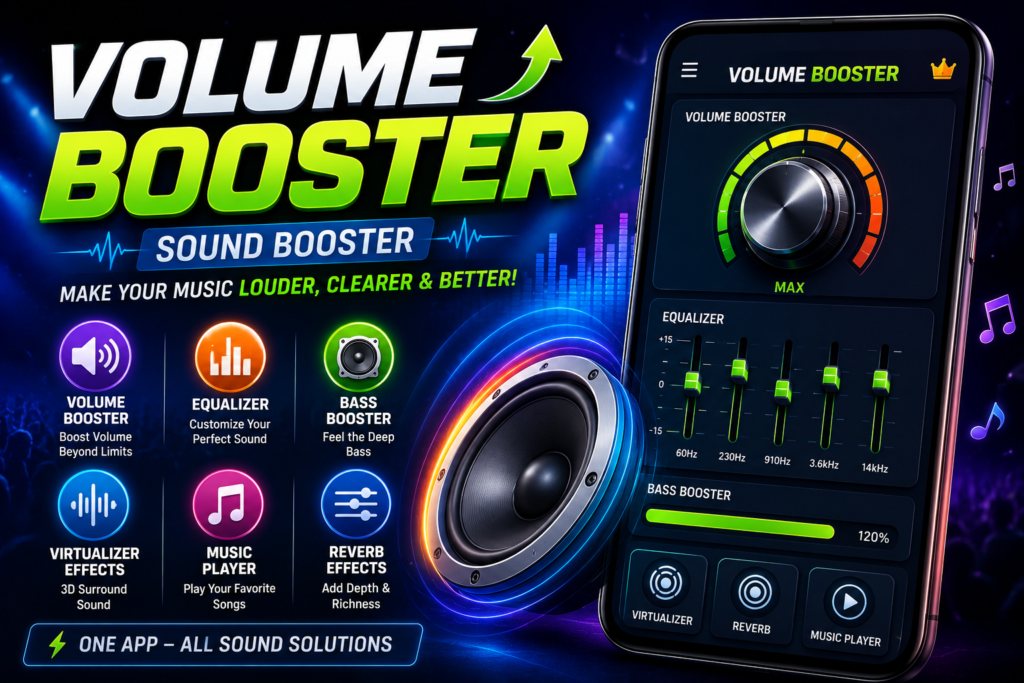
Welcome to the Volume Booster: Sound Booster support page. This guide helps Android users understand the app’s features, audio enhancement tools, equalizer settings, music playback options, and solutions for common issues.
Volume Booster: Sound Booster is designed to improve audio listening experiences through volume enhancement, bass boosting, equalizer customization, virtualizer effects, and music playback controls.
What Is Volume Booster: Sound Booster?
Volume Booster: Sound Booster is an Android audio enhancement application that combines multiple sound tools in one place.
The app includes:
- Volume Booster
- Sound Amplifier
- Bass Booster
- Equalizer
- Music Player
- Virtualizer Effects
- Reverb Effects
- Speaker Enhancement Tools
- Headphone Audio Controls
These features help users customize sound output for music, videos, podcasts, and other media playback.
Main Features
Volume Booster
The volume booster feature allows users to increase audio output beyond standard media volume levels.
Users can adjust sound levels through simple controls designed for speakers and headphones.
Equalizer
The built-in equalizer allows detailed sound customization.
Users can modify:
- Bass levels
- Treble levels
- Mid-range frequencies
- Audio balance
This helps create personalized sound profiles for different listening preferences.
Bass Booster
Bass Booster enhances low-frequency audio output.
This feature can provide deeper bass effects when listening to music through compatible headphones or speakers.
Virtualizer Effects
Virtualizer settings can create a wider sound stage and more immersive listening experience.
Many users prefer this feature while using headphones.
Reverb Effects
Reverb controls add audio depth and environmental sound effects to music playback.



Built-in Music Player
The app includes music playback controls that allow users to listen to stored audio files while using audio enhancement features.
How Do I Use Volume Booster?
Follow these steps:
- Open the app.
- Start playing music or media.
- Increase the volume slider.
- Adjust bass and equalizer settings.
- Fine-tune audio according to your preference.
Always increase volume gradually to avoid sudden loud audio output.
How Do I Use the Equalizer?
To customize sound:
- Open the Equalizer section.
- Adjust frequency sliders.
- Increase bass if desired.
- Modify treble levels.
- Save your preferred settings.
Different music genres may benefit from different equalizer adjustments.
How Do I Enable Bass Booster?
To activate Bass Booster:
- Open the Bass Booster section.
- Move the bass control slider.
- Test audio playback.
- Adjust until the desired bass level is reached.
Excessive bass settings may reduce sound clarity on some devices.
Why Is Volume Not Increasing?
Possible reasons include:
- Device volume limits
- Android system restrictions
- Bluetooth device limitations
- Connected hardware limitations
- Low-quality audio sources
Some Android devices enforce maximum volume restrictions to protect hearing.
Why Is Audio Distorted?
Distortion may occur when:
- Volume levels are too high
- Bass is set excessively
- Audio source quality is poor
- Headphones cannot handle boosted output
Try reducing:
- Volume Booster level
- Bass Booster strength
- Equalizer intensity
Balanced settings usually provide better sound quality.
Does the App Work With Headphones?
Yes.
The app is designed to work with:
- Wired headphones
- Wireless headphones
- Earbuds
- Bluetooth speakers
- Built-in phone speakers
Audio improvement results may vary depending on hardware quality.
Does the App Work With Streaming Apps?
The app is designed to work alongside many media and streaming applications.
Compatibility may vary depending on:
- Android version
- Device manufacturer
- Streaming service restrictions
Why Is the Equalizer Not Working?
Possible causes include:
- Audio effects disabled by Android
- Another audio app controlling sound settings
- Device compatibility limitations
- Background process restrictions
Try:
- Restarting the app
- Restarting the device
- Closing other audio apps
- Updating the application
Why Does the App Stop Running?
Some Android devices may restrict background processes.
Possible solutions:
- Disable battery optimization for the app.
- Allow background activity.
- Update the app.
- Restart the device.
Does Volume Booster Damage Speakers?
Using extremely high volume levels for long periods may place additional stress on speakers or headphones.
For best results:
- Increase volume gradually.
- Avoid maximum boost settings continuously.
- Use quality audio hardware.
Is Volume Booster Safe?
Generally, yes.
However, users should avoid listening at excessively high volumes for extended periods.
Safe listening practices include:
- Moderate volume levels
- Regular listening breaks
- Gradual volume adjustments
Protecting hearing health should always be a priority.
Does It Affect Battery Life?
Audio processing features may use additional battery power.
Battery usage depends on:
- Volume settings
- Equalizer activity
- Bass enhancement
- Background playback
- Device hardware
Most modern Android devices handle audio enhancement efficiently.
Common Troubleshooting Solutions
No Sound Output
- Check media volume.
- Restart playback.
- Reconnect headphones.
- Restart the app.
Equalizer Not Responding
- Close other audio apps.
- Restart the device.
- Update the app.
App Crashes
- Clear cache.
- Restart the phone.
- Install updates.
Low Audio Quality
- Reduce bass settings.
- Lower volume boost level.
- Use higher-quality audio files.
Frequently Asked Questions
Can I Use Volume Booster Without Headphones?
Yes.
The app can work with both speakers and headphones.
Does It Support Bluetooth Audio?
Many Android devices support audio enhancement through Bluetooth connections, though results may vary depending on hardware.
Can I Create Custom Sound Profiles?
Yes.
The equalizer allows users to create personalized sound settings.
Does the App Replace Android Volume Controls?
No.
The app works alongside Android’s built-in audio controls.
Is Internet Required?
Internet may be required for updates and certain app functions, but many audio enhancement features can work offline.
Official App
Users interested in exploring the app can visit:
Need More Help?
For app-specific support, feature requests, billing questions, technical issues, or account-related assistance, please use the official support options available through the app’s Google Play listing.
Keeping the latest version installed is recommended for improved stability, compatibility, and access to new audio enhancement features.
FAQ – Volume Booster: Sound Booster
1. What Is Volume Booster: Sound Booster?
Volume Booster: Sound Booster is an Android app designed to increase audio output from your device. It can amplify music, videos, games, calls, and other media while also providing sound customization tools such as an equalizer, bass booster, and audio effects.
2. How Does a Volume Booster Work on Android?
A volume booster enhances the audio signal processed by your Android device. It adjusts sound frequencies and amplification levels to make audio louder than the default system settings. Many apps also include equalizer controls for better sound balance and clarity.
3. Equalizer vs Volume Booster: What’s the Difference?
A volume booster mainly focuses on increasing loudness, while an equalizer allows you to adjust specific sound frequencies such as bass, mids, and treble. Many modern audio apps combine both features, letting users enjoy louder and more customized sound.
4. How Can I Make My Android Speakers Louder?
You can make Android speakers louder by:
- Using a reliable volume booster app
- Increasing media volume in device settings
- Adjusting equalizer presets
- Keeping speaker grills clean
- Updating your device software
- Using external speakers when needed
5. What Are the Best Audio Settings for Headphones?
The best settings depend on your listening preferences, but a balanced equalizer setup usually works well:
- Slight bass boost for deeper sound
- Clear mid-range for vocals
- Moderate treble for detail
- Virtualizer effects for a wider soundstage
Avoid excessive boosting to maintain sound quality.
6. What Is a Bass Booster and How Does It Help?
A bass booster enhances low-frequency sounds, making music feel richer and more powerful. It is especially useful for genres like EDM, hip-hop, and pop music, helping users enjoy deeper bass without requiring additional hardware.
7. Why Is My Android Volume Low?
Low volume can be caused by:
- Volume limits enabled on the device
- Dirty or blocked speakers
- App-specific audio restrictions
- Bluetooth connection issues
- Audio settings that reduce sound output
Using an audio enhancement app can help improve overall loudness and sound quality.
8. Are Audio Enhancement Apps Safe to Use in 2026?
Most reputable audio enhancement apps are safe when downloaded from trusted sources such as the Google Play Store. Choose apps with positive reviews, regular updates, and clear privacy policies for the best experience and security.
Related Apps & Guides
Clock Vault Hide Photos, Video: What to Know Before Trusting It With Private Files
September 20, 2026 • Read MoreClone Space-Dual Space: What Android Users Should Know Before Running Two Accounts on One Phone
September 16, 2026 • Read MoreTech Launcher for Android: What Hi-tech Circuit Launcher Actually Changes
September 6, 2026 • Read MoreCloud Free Storage: What Android Users Should Know Before Moving Their Photos
September 1, 2026 • Read MoreLists+ App: More Than a Phonebook, but Check Sync Limits and Data Access Before You Install
August 27, 2026 • Read MoreIncoming Screen Theme: Features, Privacy & What to Check
August 24, 2026 • Read More✍️ About the Author – M Raj
Every website article I write is for the benefit of users (viewers). I focus on fully meeting the needs of article visitors and ensuring they are satisfied. All articles are created following Google’s article policy (Publisher Center guidelines). To get in touch, email M Raj at mraj@indshorts.com.
🧾 Editorial Standards
For corrections or clarifications, contact M Raj: keyboardtamil17@gmail.com