Quick Answer
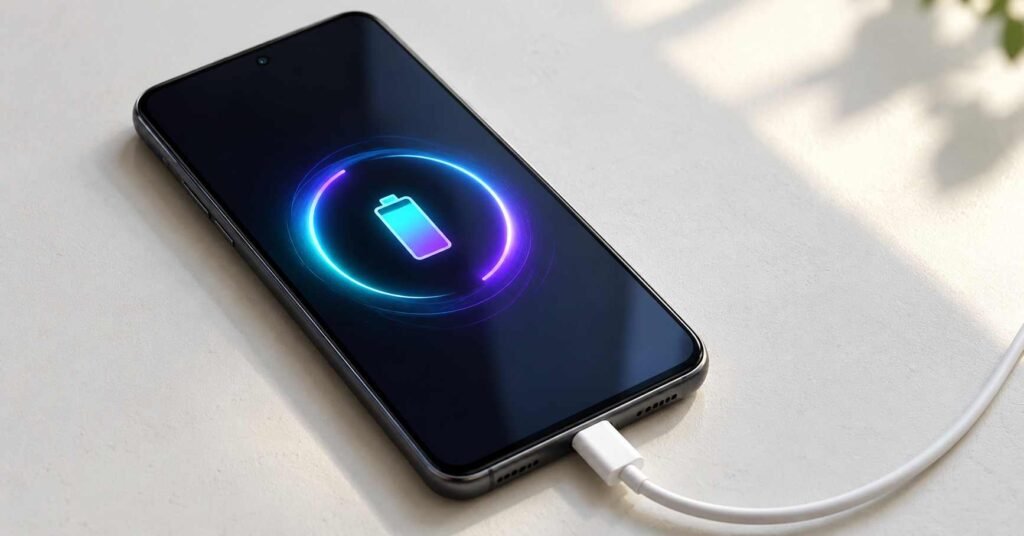
A battery charging animation adds a visual effect when you connect your phone to power. Its purpose is personalization; the animation itself does not increase charging speed. Before keeping an app like this, check whether it works with your screen locked, stops when you unplug, and has permissions, privacy practices and costs you accept. Charging speed depends on factors such as your phone, charger and cable.
Sources checked: 9 October 2026. This guide uses official listings and documentation; IndShorts has not performed hands-on performance or security testing of this app.
Quick Overview
| Item | What readers should know |
|---|---|
| App discussed | Live 3D Charging Animation |
| Listed developer | Neli Creative |
| Verified platform | Android, through Google Play |
| Category | Personalization |
| Advertising | The listing declares ads |
| Main decision | Whether the visual effect is worth its access, data and everyday usability trade-offs |
Confirm installation eligibility on your own device.
What Live 3D Charging Animation offers
The developer describes charging effects, customizable backgrounds, 3D-style visuals, live wallpapers and battery information. These could appeal to someone matching a phone theme or creating a decorative charging display. The advertised battery diagnostics need a separate assessment from the visual features. [1]
The useful question is what happens after you choose a theme. Does it appear during normal charging, remain easy to dismiss, and leave your phone comfortable to use?
Seven checks that matter in daily use
1. Test a real charger connection
An attractive preview tells you how an effect looks inside the app. It does not establish how it behaves when the app is no longer on screen.
Android restricts apps that try to open a new screen from the background. This app’s activation method has not been verified, so test automatic activation on your own phone.
After completing setup, try this:
- Return to your home screen and connect the charger.
- Repeat with the phone locked.
- Check that you can unlock and use the phone normally.
If the effect only appears while the app is open, review its setup instructions and device compatibility. Avoid changing unrelated system settings just to reproduce a promotional preview.
2. Check how the animation ends
Unplug the charger and check whether the animation stops. Try dismissing it, switching off the screen, and returning to your previous activity. Also check that incoming calls and the notifications you normally use remain accessible.
Keep your normal PIN, password or biometric screen lock enabled throughout the trial.
For a bedside phone, a brief effect may be more comfortable than a bright display that stays active. If a duration setting is available, start with the shortest option that suits you. Android’s own guidance recommends minimizing unnecessary screen-on time because it consumes battery power.
3. Separate the charging effect from the live wallpaper
Decide whether you want a visual change only when connecting power or also during ordinary phone use.
Where separate controls are available, enable the charging effect first and leave the live wallpaper off. This makes it easier to judge whether the feature you actually wanted is worthwhile.
Google’s Pixel battery guidance specifically recommends turning off live wallpapers to conserve battery. That supports a cautious starting point, but it does not quantify this app’s power consumption.
During normal use, watch for unwanted screen activity or unusual warmth. Compare similar periods with the optional effect enabled and disabled. A single short charging session cannot isolate an app’s energy impact when brightness, starting charge and other activity differ.
4. Understand what the battery readings mean
Three readings can look reassuring while answering different questions:
| Reading | What it tells you |
|---|---|
| Charge percentage | How full the battery currently is |
| Basic health status | A reported condition, such as good, overheated or unknown |
| Capacity health estimate | The battery’s estimated maximum capacity compared with when it was new |
Android exposes charge level and basic health status separately. Google’s battery-capacity feature on supported Pixels estimates capacity relative to when the battery was new. A generic “Good” label alone does not establish that a battery retains its original capacity. That is the practical distinction readers should apply to any advertised diagnostic display.
Also, being connected to power and actively gaining charge are different states. An animation alone cannot establish which state applies.
If the app displays a percentage, compare it with your phone’s own battery indicator before relying on it.
If a battery charging animation screen keeps moving while the percentage pauses, check the phone’s own Battery settings. Supported phones may intentionally limit charging—for example, Pixel offers an optional 80% limit. An animated character continuing to move is not a reason to disable that protection.
5. Match each permission to the feature you selected
If setup asks for Display over other apps, understand that this allows an app to place windows above other apps. Look for a clear explanation of why the selected feature needs it and how to turn that feature off. This is a conditional check; the app’s actual permission requests have not been verified here.
For any request that seems unrelated to the feature you chose, pause before accepting it. Ask whether the customization is useful enough to justify that access.
You can review ordinary permissions through Settings → Apps → the app → Permissions, with wording varying by device. Special access such as overlays may have a separate settings page.
A Data safety declaration and a permission request answer different question. Google explains that some collection can occur through methods not governed by a permission prompt. Declining a location prompt, for example, should not be treated as proof that an app collects no information.
6. Read the complete Data safety disclosure
At the time checked, the app’s Google Play summary declared:
- Collection of location, app activity, and device or other identifiers.
- No third-party data sharing under Google Play’s disclosure framework.
- “Data isn’t encrypted.”
The second statement does not cancel out the first. Google distinguishes collection from sharing and excludes some transfers, including certain service-provider processing, from its sharing label. Its encryption disclosure concerns data in transit.
Neli Creative’s general privacy policy also names third-party services such as AdMob and Firebase Analytics. Because it covers multiple apps, it is not a precise account of every behavior in this one.
Editorial assessment: the encryption declaration deserves consideration before installing an optional visual utility. It does not, by itself, establish malware or identify which transmissions are affected. Readers who are uncomfortable with the disclosures can choose another customization method.
7. Confirm the cost of the theme you actually want
Check the chosen effect before committing to any payment. If an unlock screen appears, establish whether it involves watching an ad, making a one-time purchase or starting a recurring plan. Read the billing period and what happens when any trial ends.
There is a documentation limitation here: the developer’s linked general terms discuss subscriptions for translation services. They do not establish this charging app’s specific theme prices or subscription structure.
Verify the exact price, billing interval and trial conditions on the current offer and purchase confirmation screen.
Is it worth trying?
It may suit users who enjoy visual personalization and accept the app’s disclosed practices. Start with one effect, then decide whether its behavior is useful enough to keep.
| Your priority | Practical choice |
|---|---|
| A decorative effect when connecting power | Try one theme and complete the usability checks |
| A clock or useful charging display | Check your phone’s built-in options first |
| Charging speed or battery condition | Use your phone’s charging guidance or battery-support options |
| Fewer optional apps handling data | Consider keeping the existing charging display |
For example, Google documents charging screen savers on Pixel with clock, photo and charging-status options. Other phones have different customization menus; check what yours already includes.
Keep the app only if its appearance, reliability, access requirements and data practices all work for you. The best-looking preview is only one part of that decision.
How to uninstall the charging animation app
If you decide to remove it, first switch back to your preferred wallpaper if you changed it.
In Google Play, open your profile menu, choose Manage apps & devices, then Manage. Select the app and choose Uninstall. Menu wording can vary.
If you started a Google Play subscription, cancel it separately in your Play subscriptions list. Uninstalling an app does not cancel its subscription. This is general cancellation guidance, not confirmation that this app currently offers a recurring plan.
Frequently Asked Questions
Is Live 3D Charging Animation available now?
Its Android listing was accessible when checked. Open the official Google Play page on your phone to confirm whether installation is available for your device and account.
Does a battery charging animation make charging faster?
The visual effect itself does not increase charging power. Check compatible charging hardware and your phone’s charging settings if speed is the concern. Google’s charging guidance explains the importance of the charger and cable.
Do charging animations cause battery drain?
Keeping the display active consumes power. While plugged in, that does not necessarily mean the battery percentage will fall. The impact depends on the effect’s behavior, and this app’s power use has not been measured here.
Are all of its charging effects free?
That was not established. Check your chosen effect’s unlock conditions before paying or starting a trial; the advertising label does not explain access to every theme.
Is the app safe to use?
A definitive security verdict would require more than a store listing. Review the data disclosures discussed above, the developer’s policy and the requests shown during setup. This guide has not audited the app’s code or network activity.
Why might the animation work in a preview but not on the lock screen?
A preview shows the effect inside the app. It does not confirm that the effect can start over your lock screen. Test those situations separately and follow the developer’s guidance; a specific cause cannot be diagnosed from the preview alone.
Is there an iPhone version of this exact app?
An official iOS listing for this exact app was not verified during this check. The download source provided here is for Android. Do not assume an iPhone app with a similar name has the same developer or features.
Official App Link
Check the developer name, compatibility and current disclosures before installing.
Editorial Disclosure
IndShorts.com publishes independent app news, update explainers, mobile technology guides, and informational content.
IndShorts.com is not affiliated with Google Play, the App Store, Google, Apple, or any app developer unless clearly stated.
App names, logos, trademarks, and brand names belong to their respective owners.
Content is based on publicly available information, official sources where available, and independent editorial analysis.
App features, pricing, availability, permissions, and policies may change over time.
Readers should verify important details through official app store listings or developer sources before making decisions.
Related Apps & Guides
What Are VoIP and SMS Services?
October 8, 2026 • Read MoreAndroid Car Launcher: SuperCar Launcher Explained
September 30, 2026 • Read MoreWallpaper for Girls: Is a Dedicated Aesthetic Wallpaper App Actually Useful?
September 25, 2026 • Read MoreClock Vault Hide Photos, Video: What to Know Before Trusting It With Private Files
September 20, 2026 • Read MoreClone Space-Dual Space: What Android Users Should Know Before Running Two Accounts on One Phone
September 16, 2026 • Read MoreTech Launcher for Android: What Hi-tech Circuit Launcher Actually Changes
September 6, 2026 • Read More✍️ About the Author – M Raj
Every website article I write is for the benefit of users (viewers). I focus on fully meeting the needs of article visitors and ensuring they are satisfied. All articles are created following Google’s article policy (Publisher Center guidelines). To get in touch, email M Raj at mraj@indshorts.com.
🧾 Editorial Standards
For corrections or clarifications, contact M Raj: keyboardtamil17@gmail.com